Subscribers
Subscribers represent end users who access the system via the User Portal or mobile application. Devices are assigned to subscribers for ownership and subscriber-level configuration.
Use Cases
- Create end-user accounts for application access
- Assign devices to a subscriber
- Apply subscriber-specific settings while inheriting
Entity -> Venueconfigurations
Create a Subscriber
Prerequisite
An Operator must already exist (with its associated Entity)
Step 1: Open Operator
- Log in to OWPROV UI
https://<DOMAIN_NAME>:8443 - Navigate to
Operatorsfrom the left menu - Select the target Operator (for example,
Airtel)
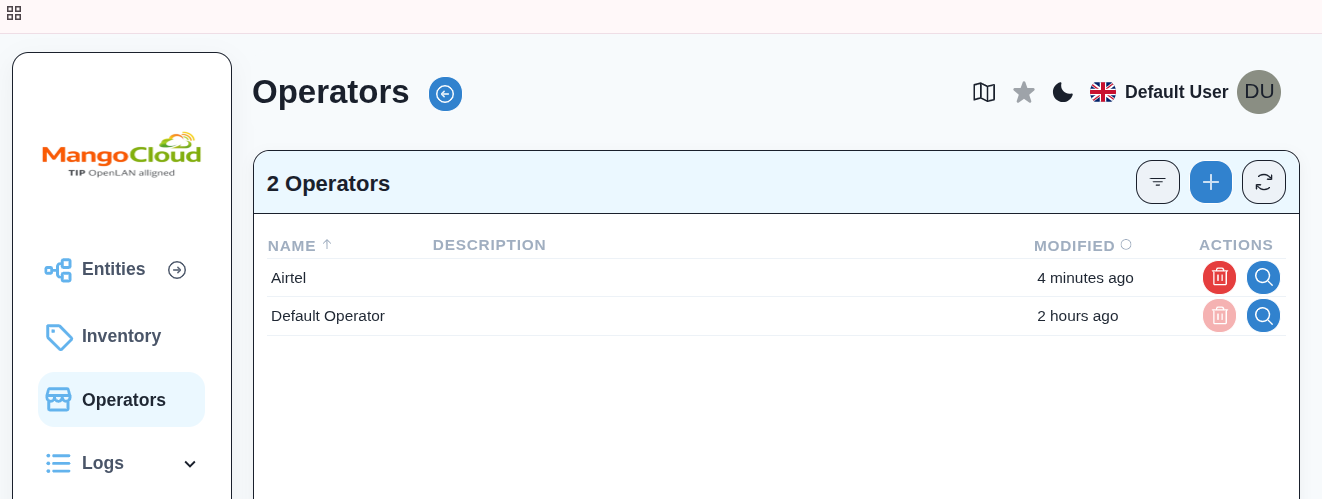
Step 2: Open Subscribers Section
- Go to the
Subscriberstab next toDevices - If no subscribers exist, you will see
No Subscribers Found - Click
+(Create)
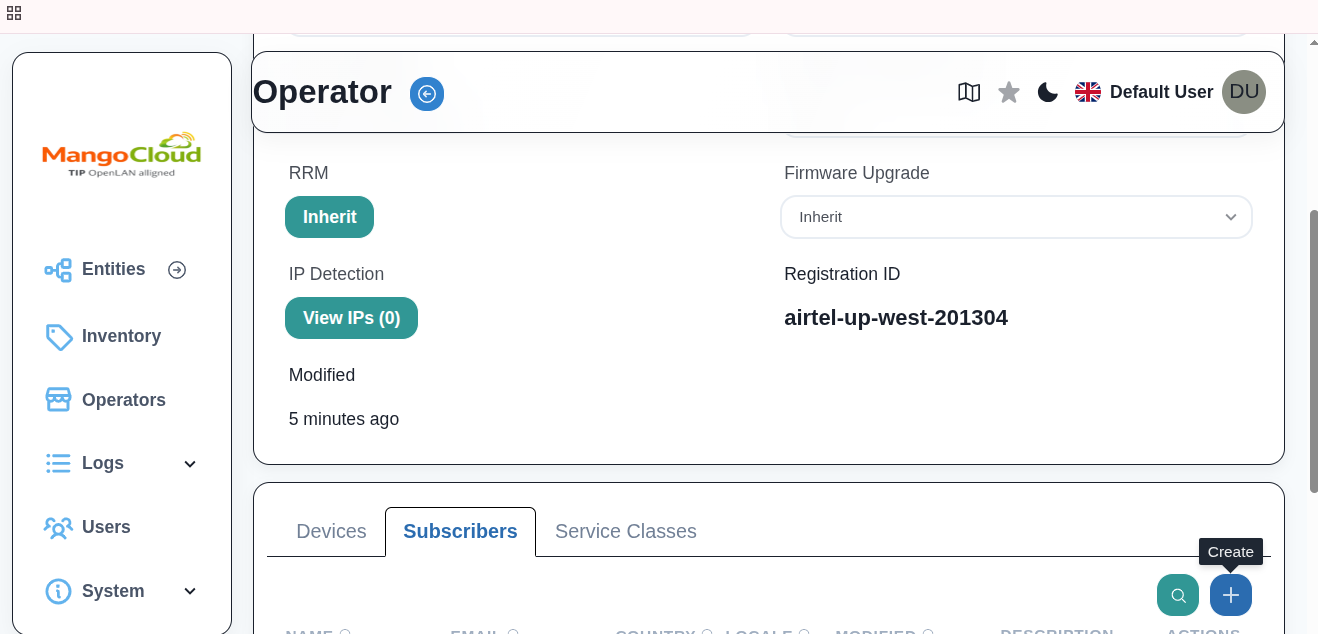
Step 3: Enter Subscriber Details
In the Create Subscriber popup:
- Enter
Email Address(for example,example@gmail.com) - Click
Save
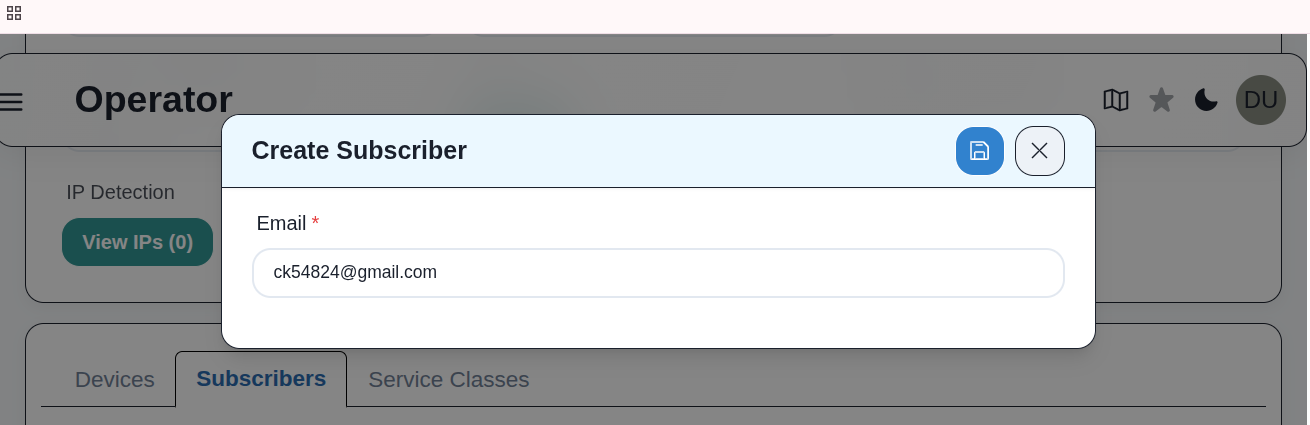
Step 4: Verify Subscriber Creation
- The Subscriber appears in the Subscribers list under the selected Operator
- A Venue is automatically created and associated with the Subscriber's Entity
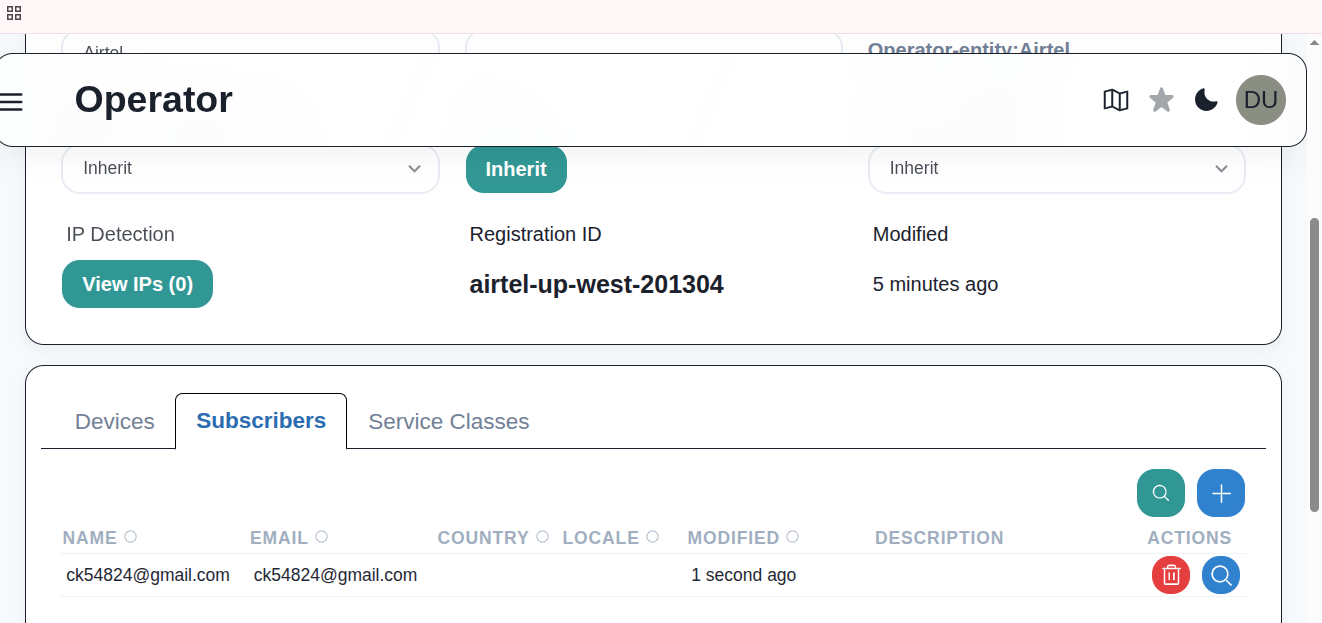
Step 5: Email Verification
After creation:
- A verification email is sent to the subscriber
- The subscriber must:
- Open the verification link
- Set a password
- Log in to the mobile app using their email and password
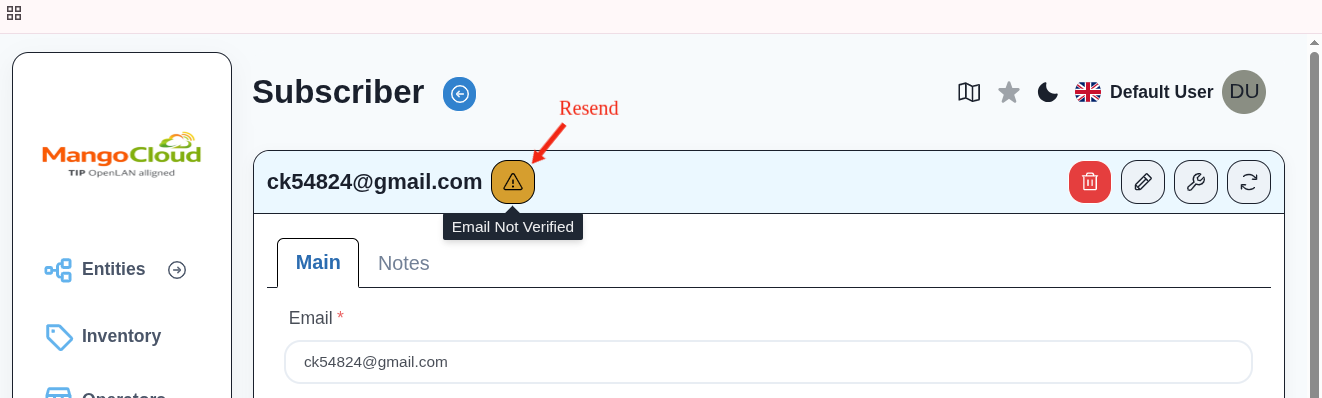
Step 6: Resend Verification Email (Optional)
If the verification email is not received:
- Click
Resendfrom the Subscriber page
Result
- Subscriber account is created successfully
- A dedicated Venue is automatically created under the Subscriber's Entity
- Subscriber can log in and manage assigned devices