Add Devices to a Venue
Devices must be assigned to a Venue to receive the correct configuration through the Entity -> Venue -> Subscriber hierarchy.
Use Cases
- Organize devices by Venue for easier management (inventory, provisioning, monitoring)
- Automatically apply Venue-level configurations
- Ensure devices receive the correct inherited settings
Add a Device to a Venue
Prerequisites
- The target Entity and Venue must already exist
- The device should not already be assigned to another Venue
Step 1: Select Venue
- Log in to OWPROV UI
https://<DOMAIN_NAME>:8443 - Navigate to
Entities - Select the target Entity
- Open the required Venue
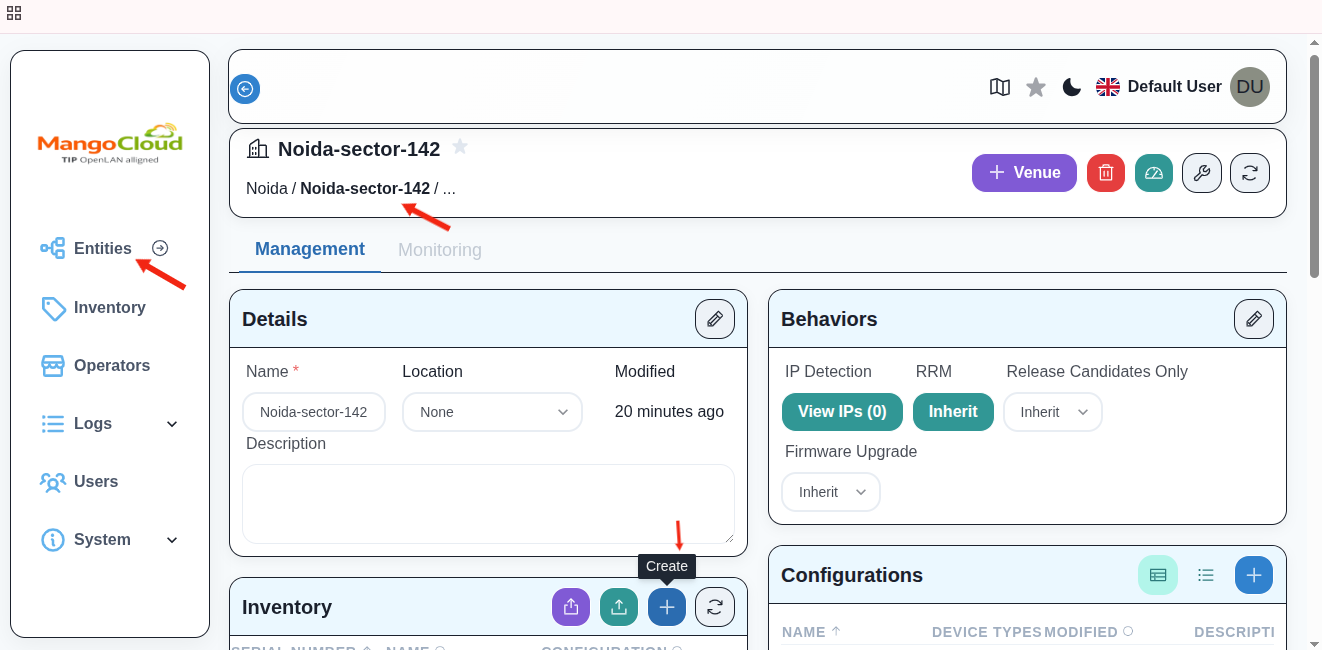
Step 2: Open Venue Inventory
- Go to the
Inventorysection within the Venue - Click
+(Create)
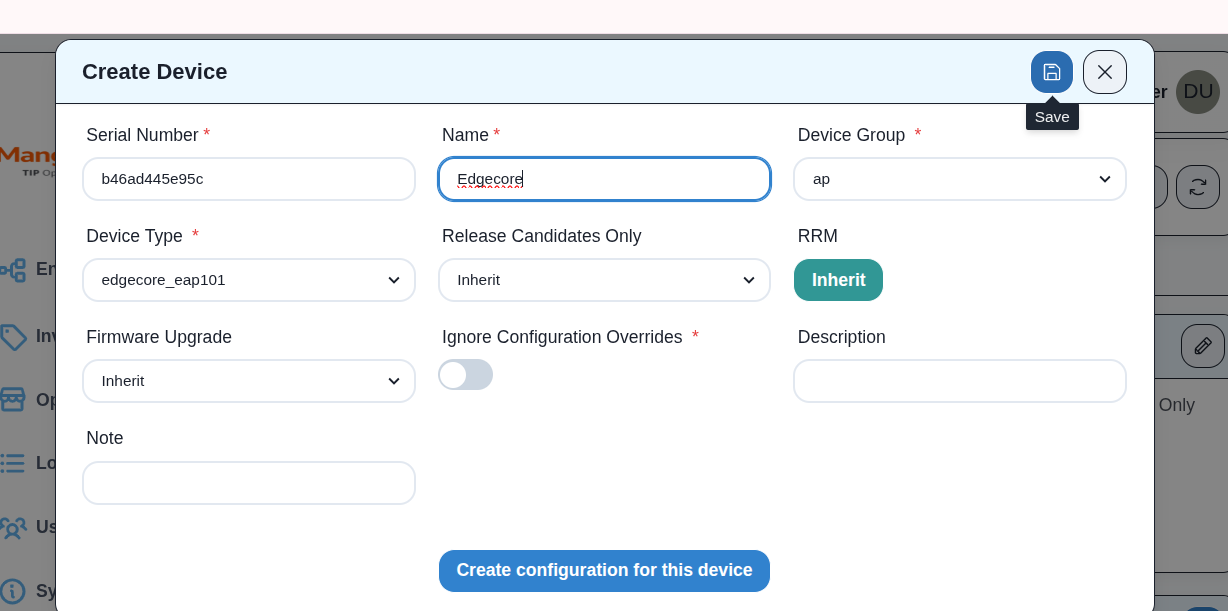
Step 3: Enter Device Details
Provide the required device information:
- Serial Number:
- Device Name:
- Device Type:
Click Save
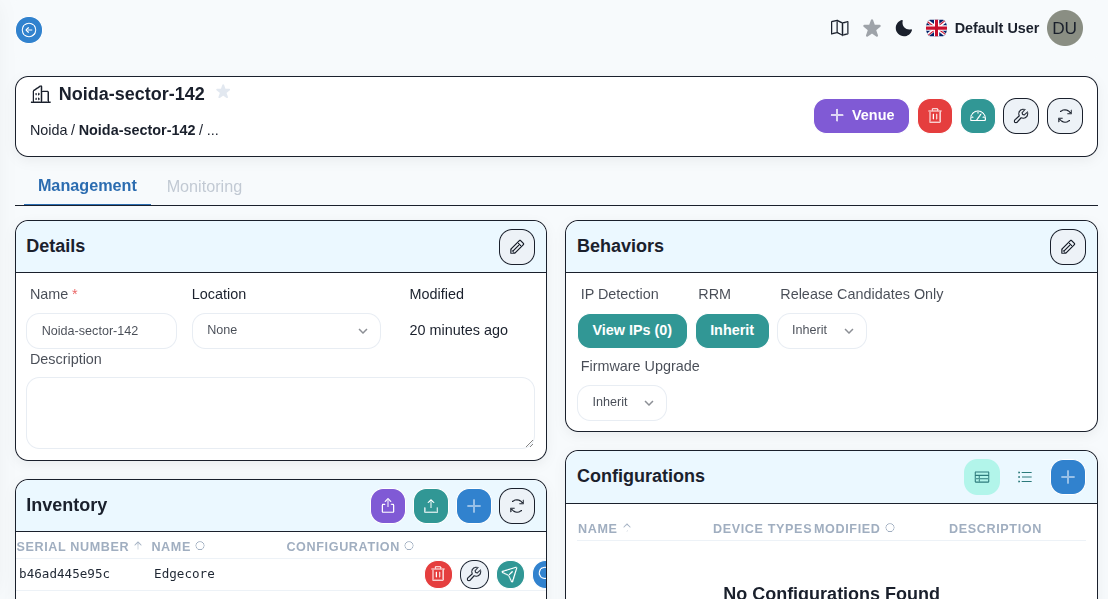
Step 4: Verify Device Assignment
- The device appears in the Venue device(Inventory) list
- The device is now linked to the selected Venue
Result
- The device is successfully assigned to the Venue
- It automatically inherits configuration from:
- Entity level
- Venue level
- The device is ready for provisioning and management