Default Device Configurations
Use Case
When a device connects to OWGW, the system identifies its device type or model.
If the device is:
- connecting for the first time, or
- has been factory reset, and
- does not have a device-specific configuration assigned,
then OWGW automatically applies the default configuration associated with that device type.
How to Add a Default Configuration
- Log in to the OWGW UI.
- From the left navigation menu, go to
Defaults -> Configurations.
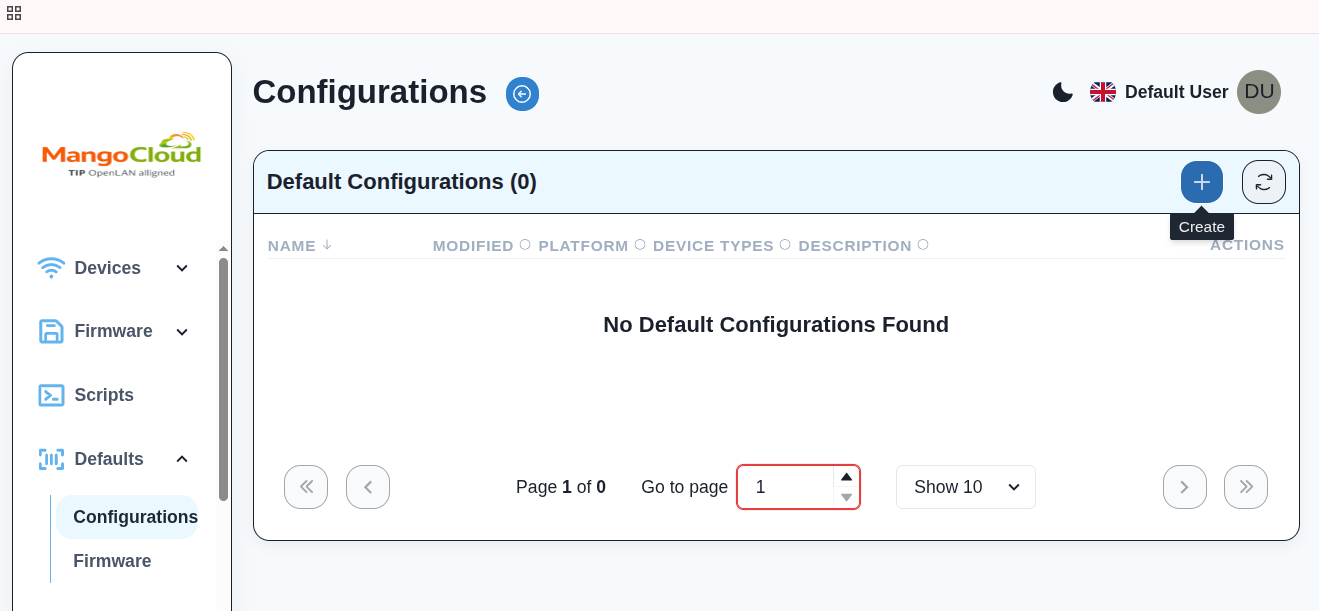
- Click on +(Create) or the equivalent action.
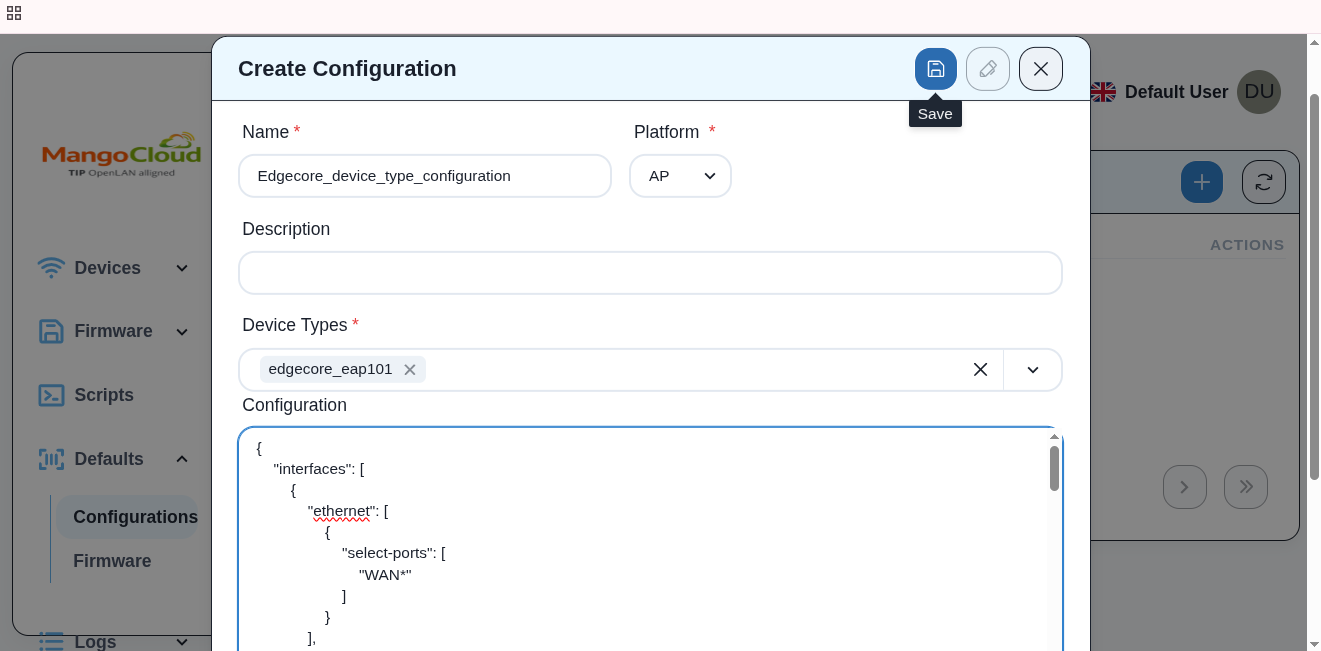
- Enter a Configuration Name, for example
tplink_default_configuration. - Select the appropriate Device Type.
- Paste the required configuration JSON.
- Click Save to apply the configuration.
- Verify that the configuration appears in the
Defaults -> Configurationslist.
Result
The default configuration is saved and becomes available for automatic application to matching device types.